
Making your first request
This documentation guides users through the process of obtaining API credentials for the Lookout app and step-by-step instructions for making example API calls.
Make your credentials
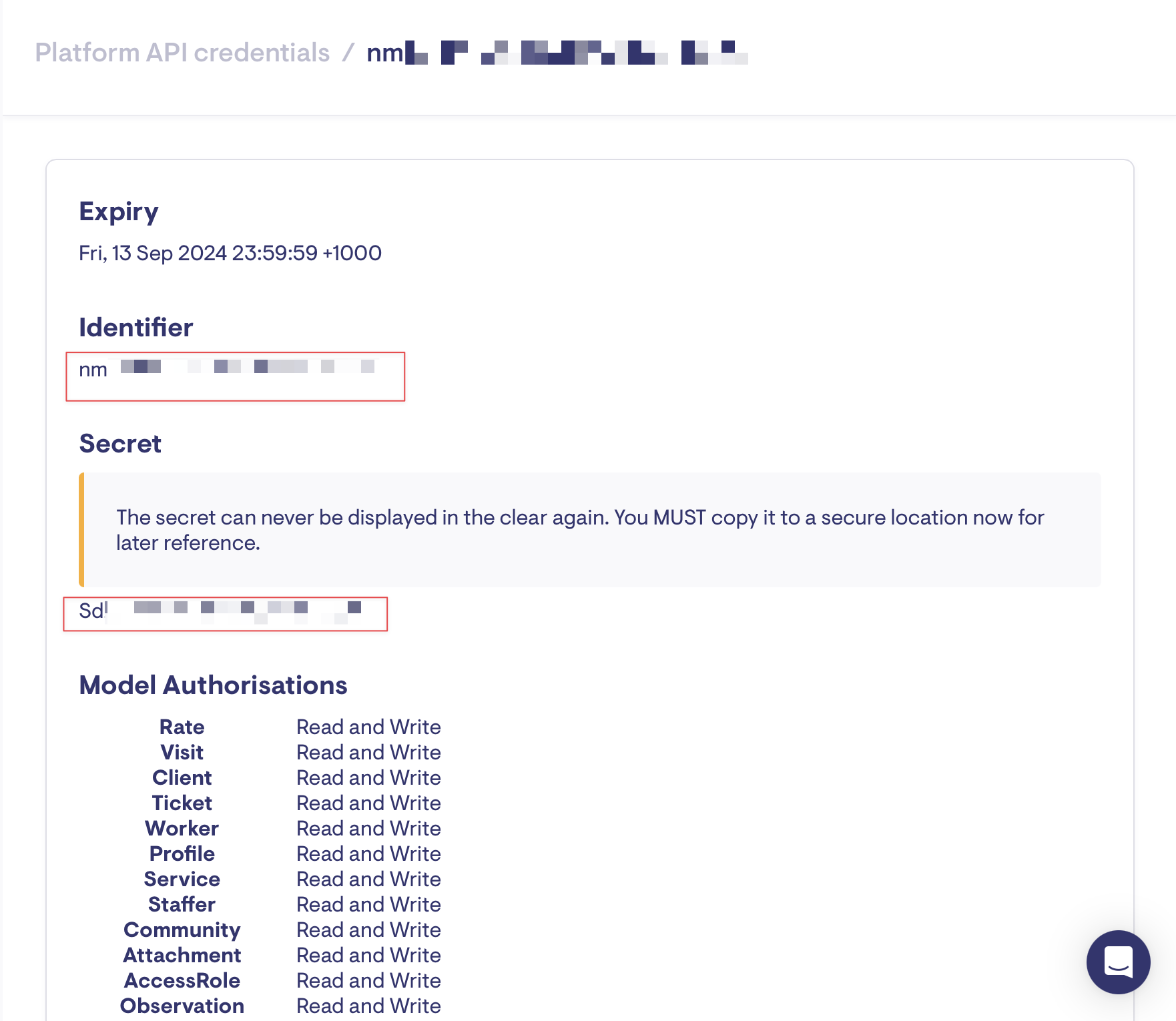
In order to generate your API credentials within the Lookout app, you'll need to follow these steps using a user with Technical permissions:
- Navigate to the "Settings" section.
- Click on "Platform API Credentials."
- Then, click the "New Platform API Credentials" button.
On the subsequent page, you can specify the read and write permissions you require for your API credentials.
Once you've saved your API credentials, you'll receive both a secret and an identifier.
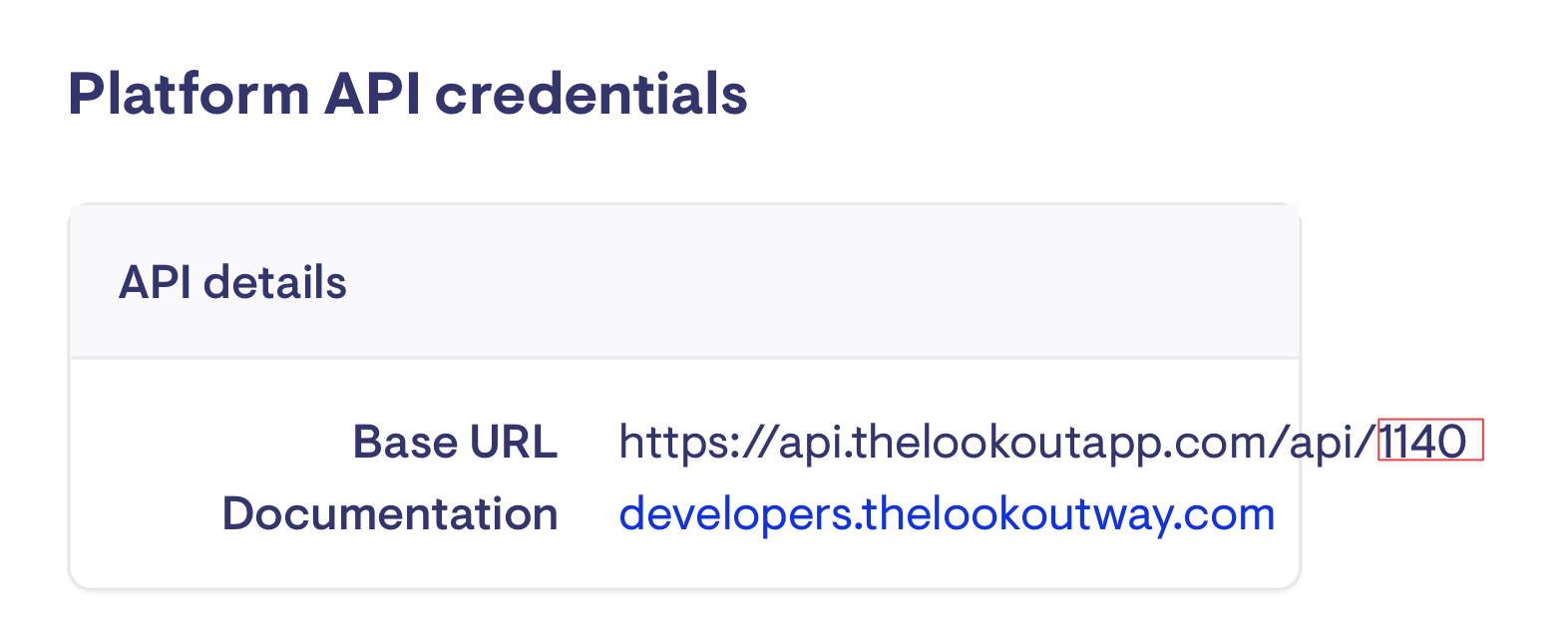
Additionally, you'll need the company ID, which you can find on the "Platform API Credentials" page. In this case, it is "1140."
With this information, you can construct the Bearer Token, consisting of the API Identifier and API Secret, and use it in the Authorization Header as follows:
Authorization: Bearer <IDENTIFIER>:<SECRET>
A great tool for testing API calls is 'Postman'. This software serves as an invaluable tool for testing API requests, enabling us to input our bearer authentication, URL, and any expected request body without the need to construct a complete end-to-end software solution typically required for such testing.
This is how the Authorization Header should appear in Postman:

Alternatively, you can directly access the 'Authorization' tab and choose 'Bearer Token' from the dropdown:

Make your API call
Now, let's proceed to make our first API call. Let's retrieve the purchase orders for a specific client, "Lorena Cole." By referring to the 'Show Purchase Orders' documentation, we can see that we can filter by client_id.
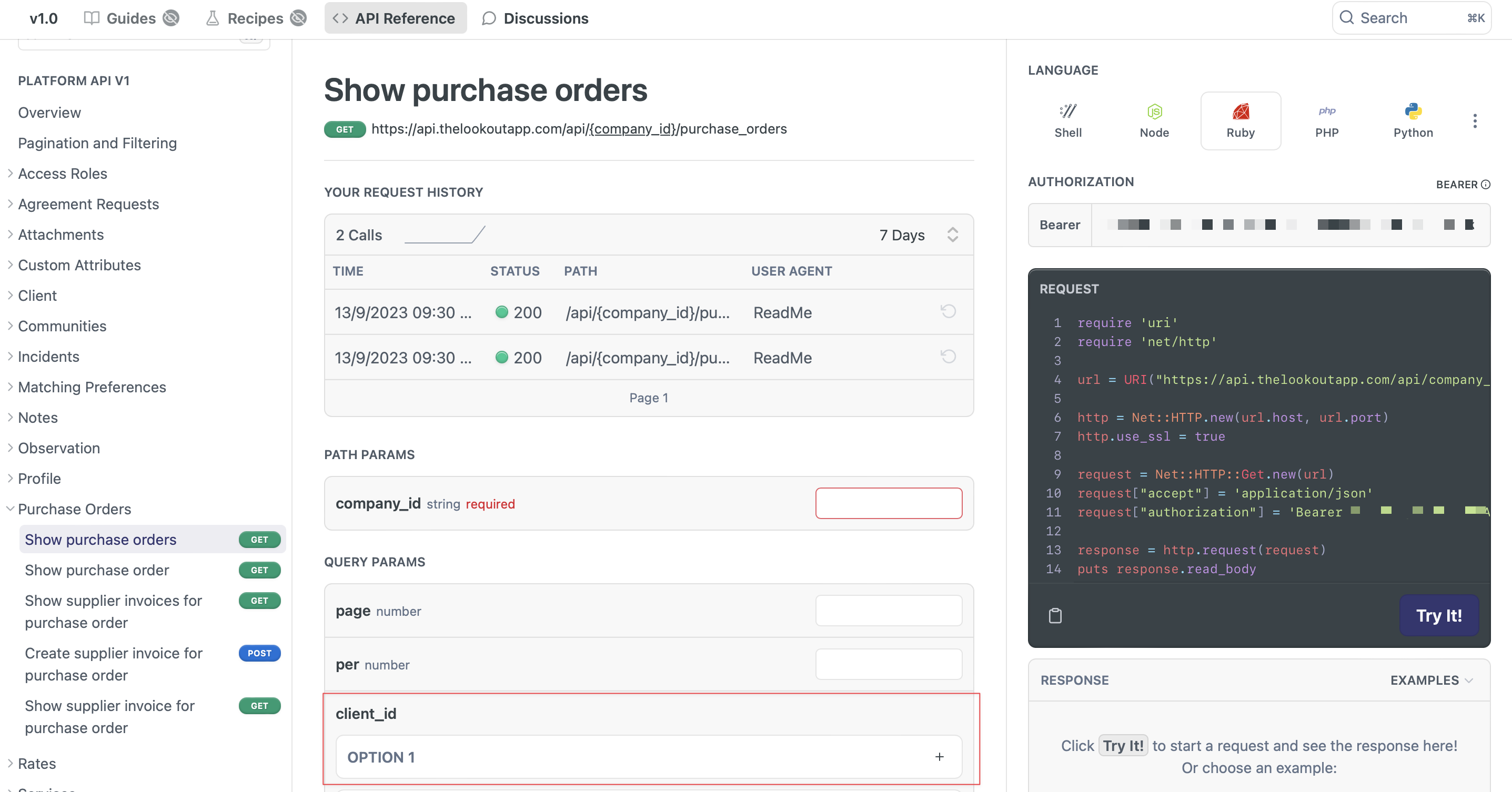
To obtain the desired client_id, We can navigate to the 'Client' dropdown on the left and select 'List all.' This is where we will find client_id.
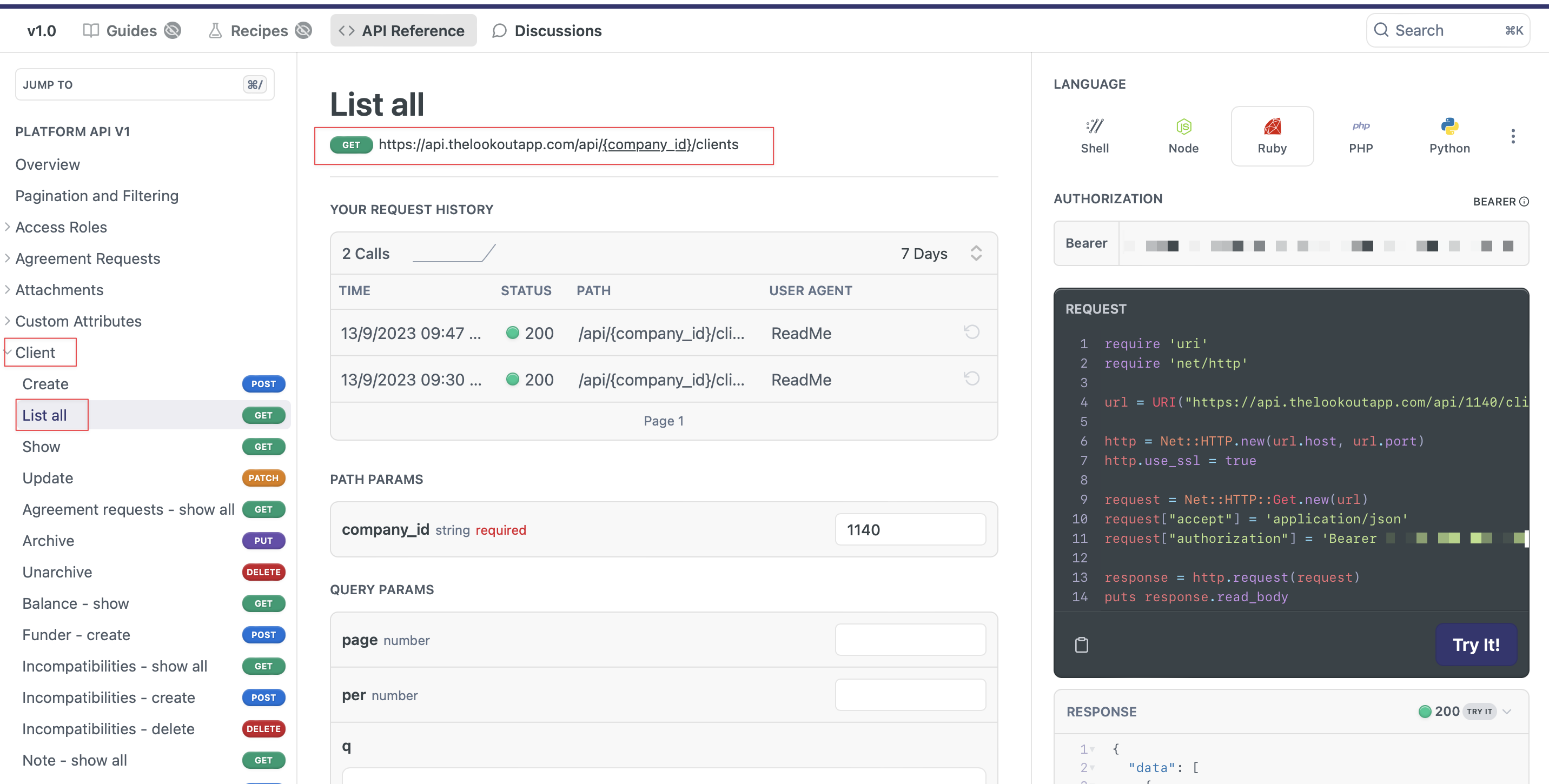
The request URL for this operation is 'https://api.thelookoutapp.com/api/{company_id}/clients,' and it's a GET request. Here we will use Postman again, with the Bearer token already input into Postman, you only need to send a 'GET' request and replace '{company_id}' with our company ID, which we identified earlier as 1140.
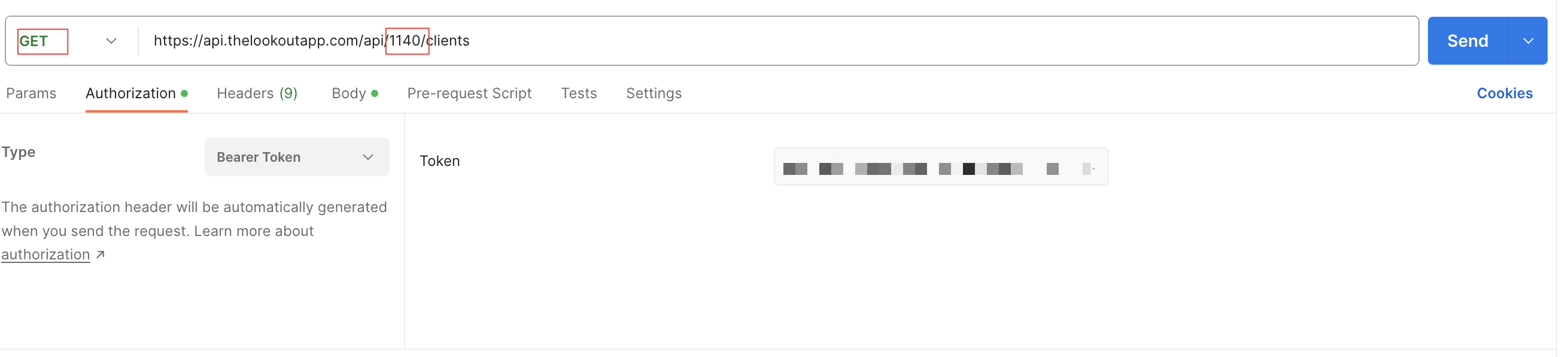
This will retrieve a list of all clients. You can see the model of the response object in the documentation
While it's possible to filter the response in code, it's more efficient to narrow down the search by using a specific query. Our documentation provides information on how to filter requests.
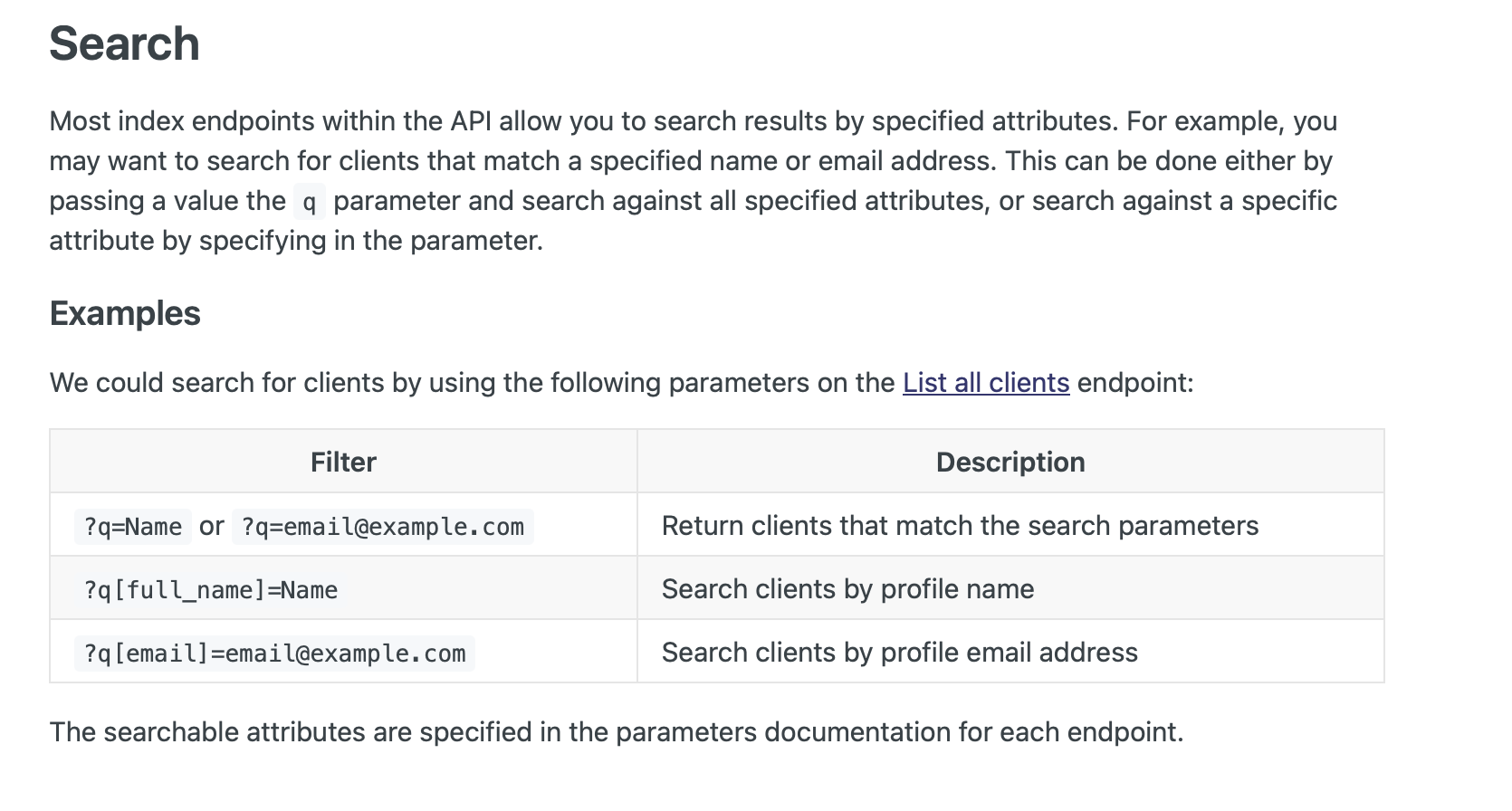
This provides details on how to format the request to search for specific fields. We can now return to the 'Client - List all' documentation to see which parameters we can search from.
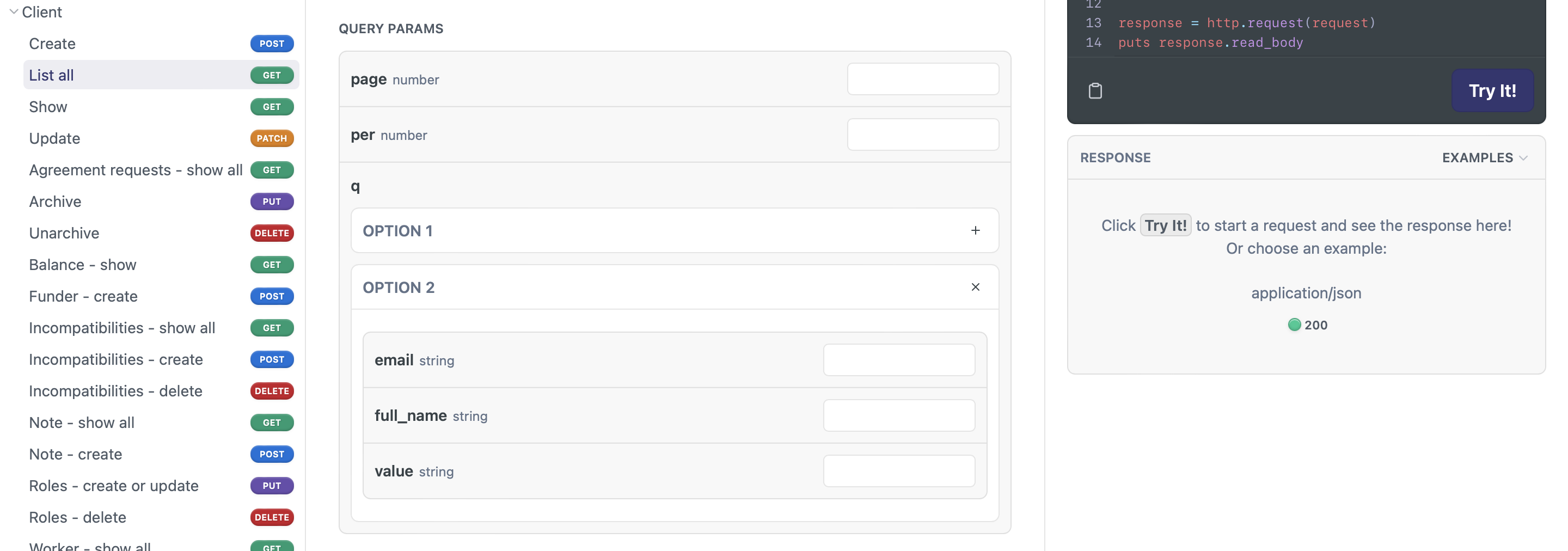
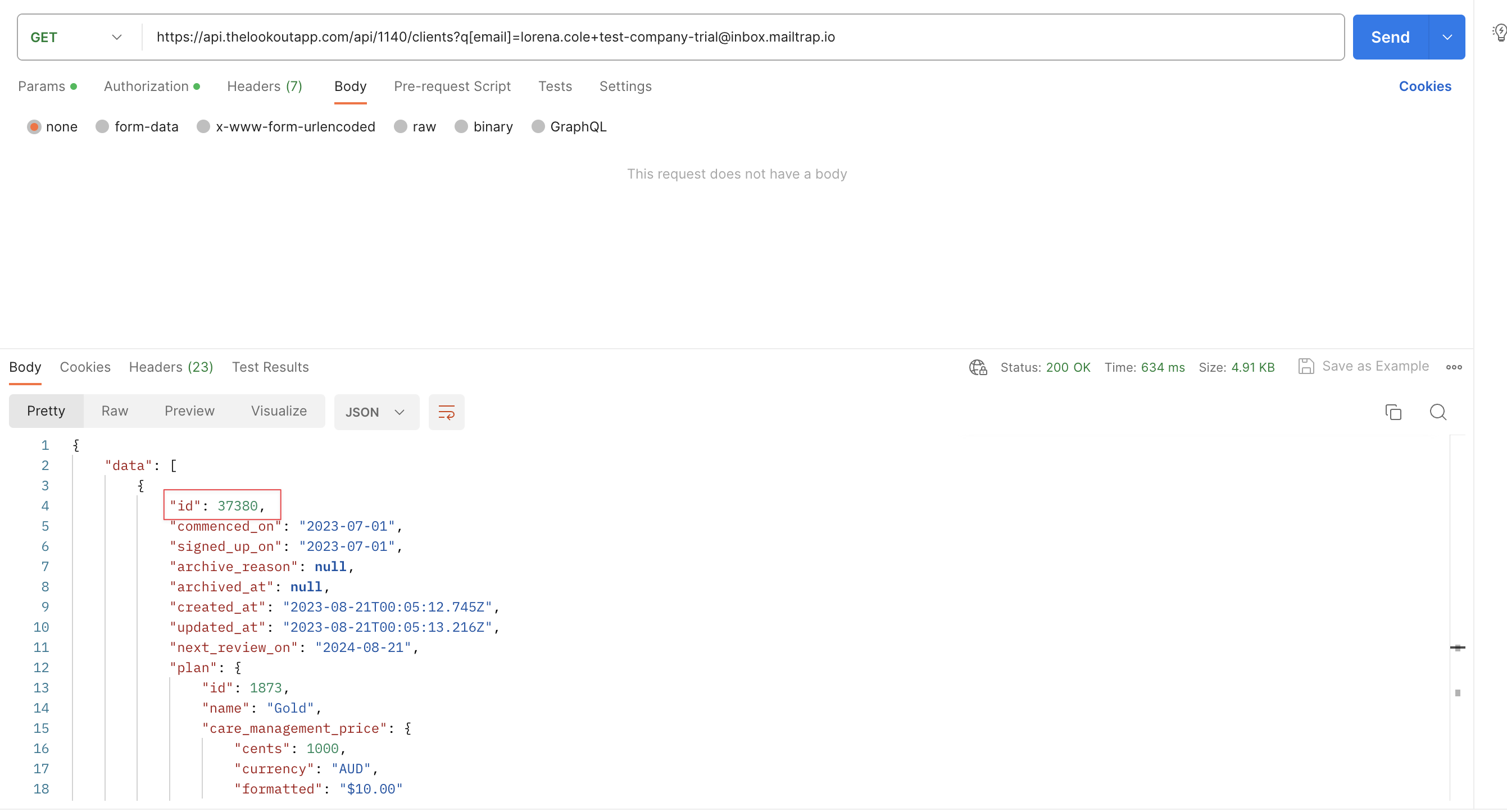
We will be filtering the search by the client's email, which for our client is a unique key. In this case, the client's email address is '[email protected]’. Referring to the Pagination and Filtering documentation, we can construct the request as follows:
This refined query returns Lorena Cole's client details, making it easier to search for purchase orders. In this case, the ID returned is '37380.'
Now, it is possible to filter the purchase orders by the client_id. Similar to the previous request, we can consult the documentation for the request URL and the available fields for filtering.
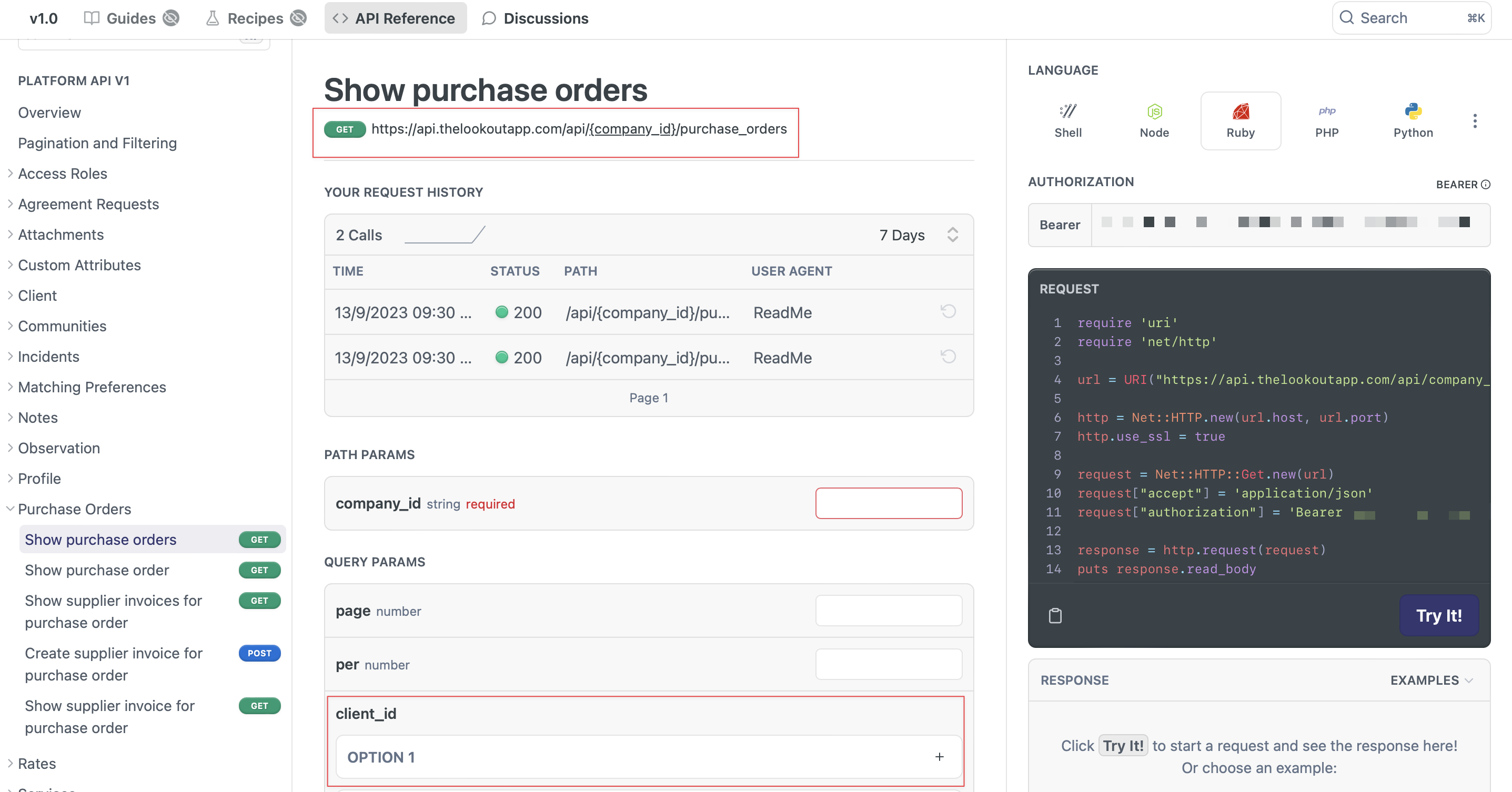
The URL for this request is 'https://api.thelookoutapp.com/api/{company_id}/purchase_orders,' and you can add query parameters such as 'client_id.' Therefore, the GET request sent will be:
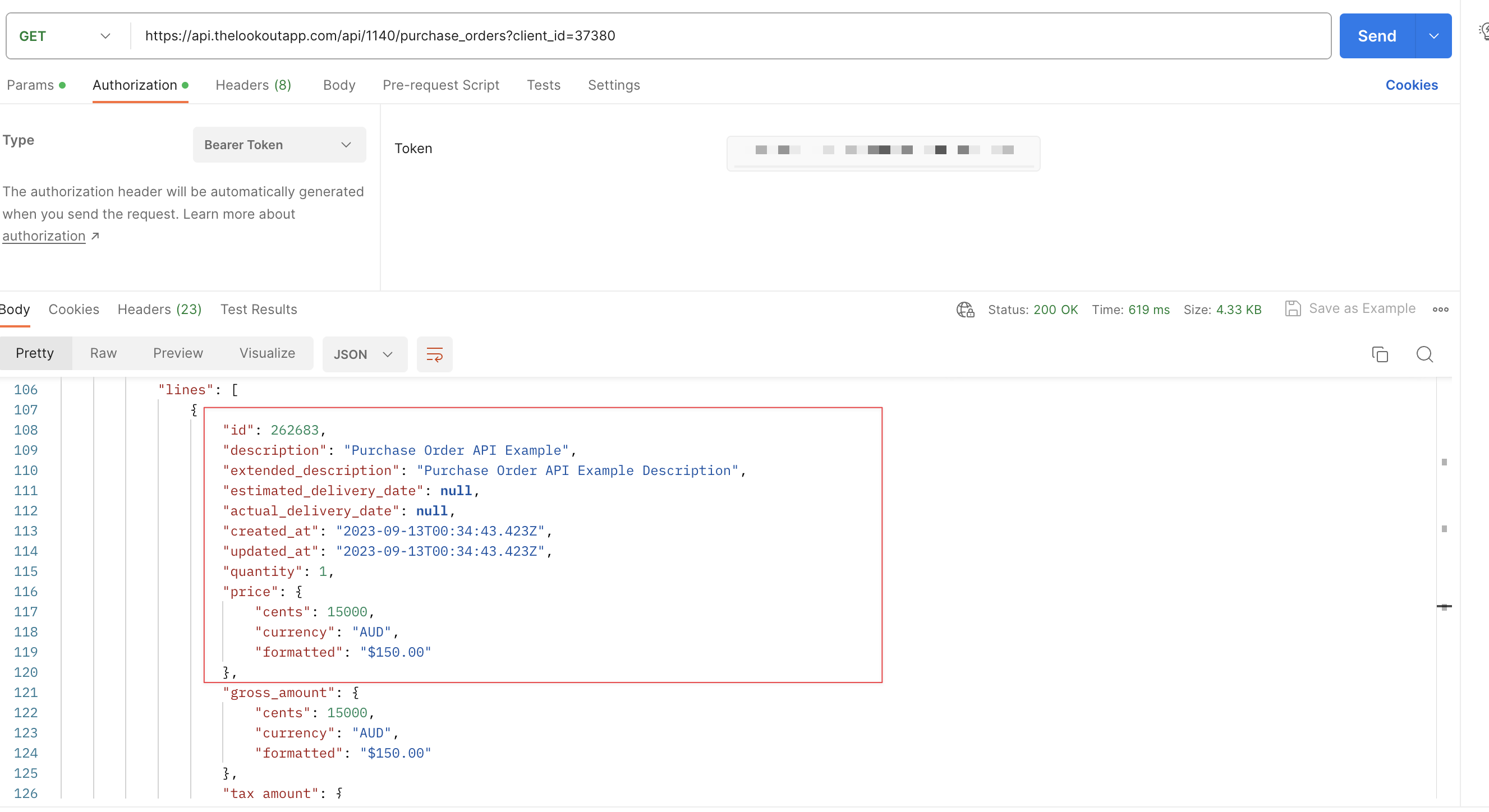
https://api.thelookoutapp.com/api/1140/purchase_orders?client_id=37380
This query returns Lorena Cole's purchase orders.
POST Request
Lastly, we will look at an example of a 'POST' request by adding a note to Lorena Cole's notebook. You can find the documentation under 'Client,' then 'Note – create.'
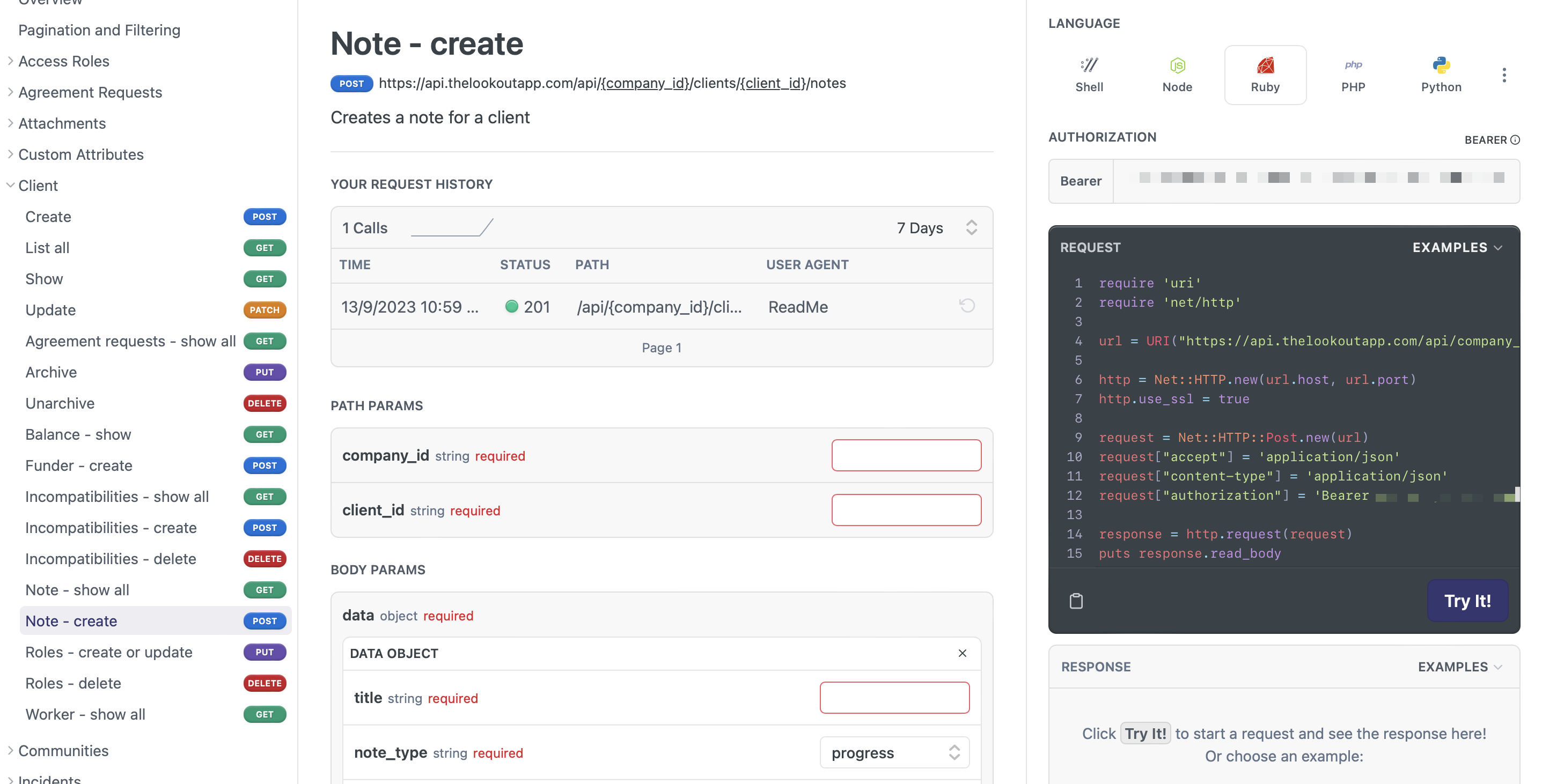
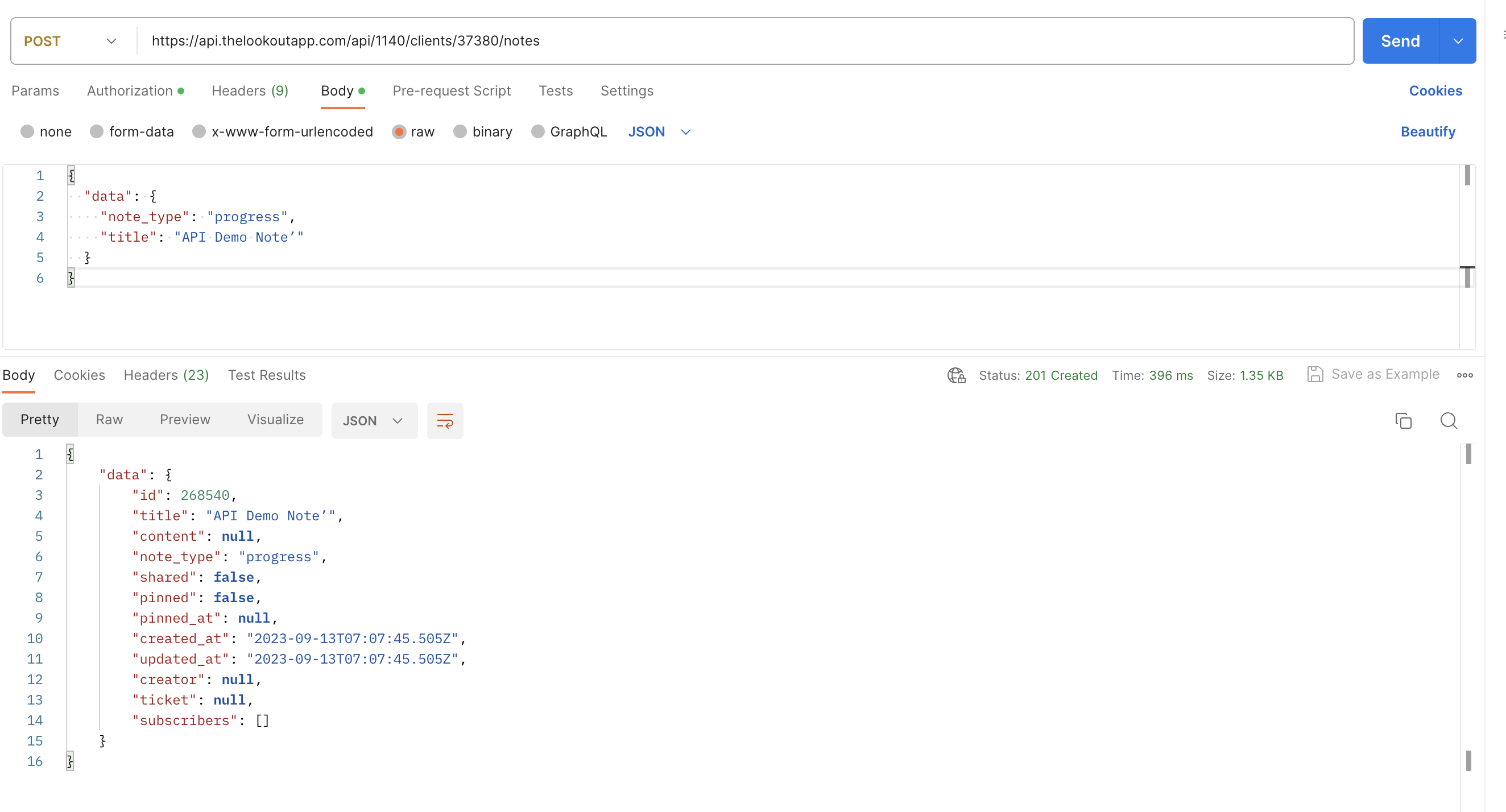
The URL for this request is 'https://api.thelookoutapp.com/api/{company_id}/clients/{client_id}/notes.' Given the company_id and client_id from our previous calls, the POST request URL will be:
https://api.thelookoutapp.com/api/1140/clients/37380/notes
The documentation specifies that the POST request requires body parameters 'title' and 'note_type.' We can select the dropdown to explore the available options for the 'note_type' field. We will keep it as 'Progress,' and the title will be 'API Demo Note.' The remaining fields will be left blank.
In this demonstration, the body parameters will be written in JSON. According to the documentation, the parameters must be inside an object called 'Data,' with 'title' and 'note_type' inside this object. We can either write the JSON for the object manually or input the fields into the API documentation to generate the request for you.
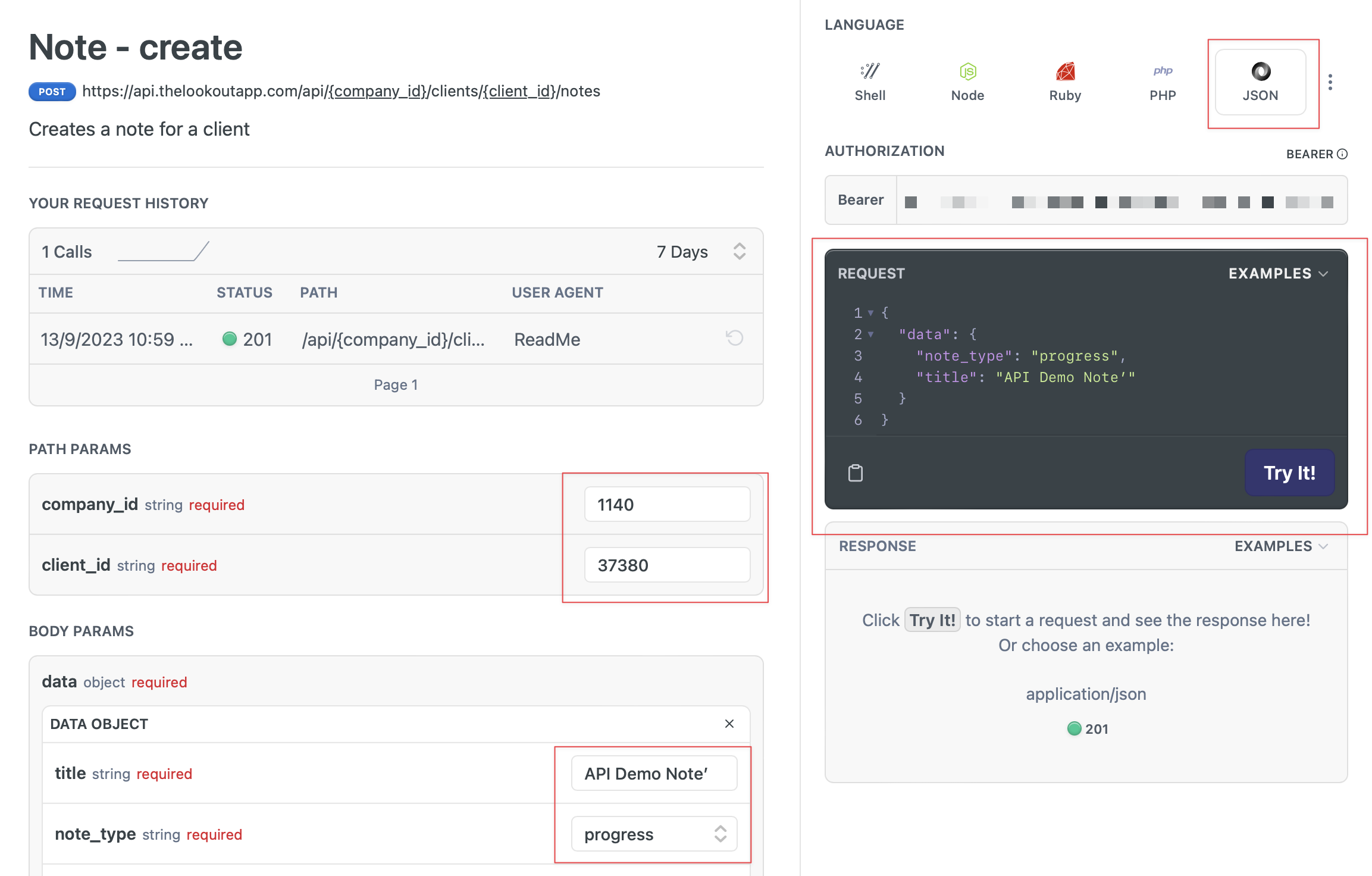
These details are in the body of the POST request in Postman, and we can see that it's sent successfully.
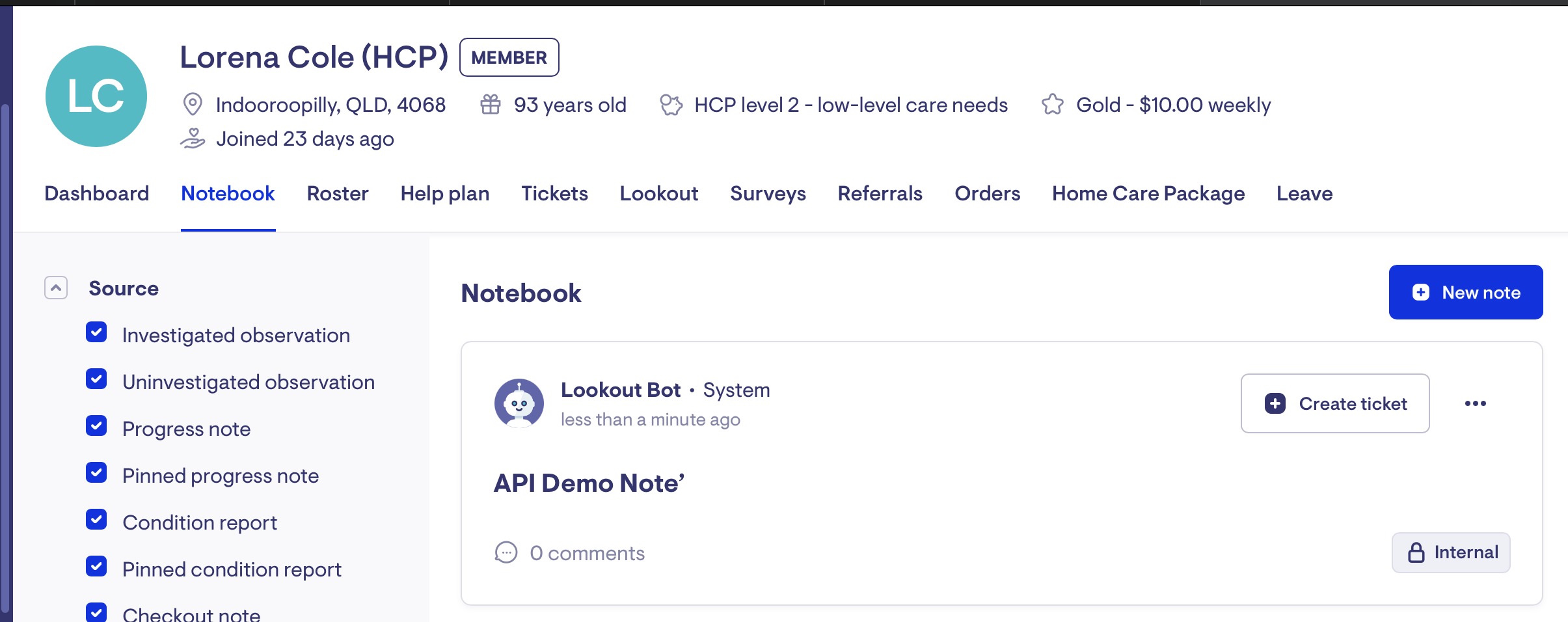
We can also go into Lookout and see in Lorena Cole’s notebook that the note has been created
Updated about 1 year ago